

Key Concepts for Drawing in Indie
Before diving into patterns, let’s recall these essential concepts that affect how drawings work in Indie.Two Execution Phases: History vs Realtime
Indie indicators run in two distinct phases:- History calculation: Each bar is processed once sequentially from left to right. Drawing objects are created and remain stable.
- Realtime updates: When new intrabar data arrives, the indicator re-executes for the current bar multiple times.
Code that works perfectly during history calculation can break during realtime updates. Always consider both phases when writing drawing code, and test your indicators on instruments with realtime updates on 1m timeframe for several minutes to ensure runtime stability.
Chart State Rollbacks
During realtime updates, when new intrabar data arrives:- The chart state rolls back to what it was at the beginning of the current bar
- Your indicator’s
calc()function executes again with updated data
If you created a drawing during an intrabar update, the rollback will remove it. If you erased a drawing during an intrabar update, the rollback will restore it.
Why Series and Var exist
MutSeries[T] and Var[T] do two things for you: they carry a value from one bar to the
next, and they roll it back on every intrabar update. The first is why function-based
indicators, which have no class fields to keep anything in, reach for a Var at all. The
second is the part that is easy to miss: inside one candle your code runs many times, and
usually only the final result of that candle should survive — not a value accumulated over
every update within it. So before each re-execution both containers restore the value the
candle started with. You do not manage that — you read the value with get() and it is
already the right one.
The difference between the two is history: a MutSeries[T] also keeps the values of previous
candles and lets you read them with [1], [2] and so on, while a Var[T] keeps only the
latest state.
A class field gives you the first half and not the second: it persists, but it keeps whatever
the previous intrabar update left in it.
When a drawing belongs in a Var
A drawing is an object like any other, so the same rule applies — with the chart added to the picture, because the chart also rolls its own state back to the start of the candle before each re-execution. Put a drawing in aVar when:
- The drawing’s next state depends on its current state. Pattern 4 below starts each new polyline segment from the previous segment’s endpoint. The chart rolled that segment back; a plain class field did not, so the two disagree and the polyline breaks.
- You read values out of the drawing for anything else, and need them to be the values the chart is showing right now.
State you accumulate yourself — a bar counter, a running total — belongs in a
Var or a
MutSeries whether a drawing displays it or not. In a plain class field it counts intrabar
updates instead of candles, because nothing undoes the previous update’s work. Once the
number is in a container, the label that displays it can stay in a plain class field.What a
Var does not do is make erasing safe. It cannot reattach a drawing that an
intrabar rollback detached from the chart — and it does not need to:
self.chart.erase() on
an object that is not currently on the chart does nothing at all. You can erase without
knowing whether the drawing is there.- One-time drawings (labels on conditions): just create and draw — no special handling
- Persistent drawings (info panels): create the object once and reuse it, in a class field or a
Var - Drawings you read back (polylines, anything whose next state is built from its current one): keep in a
Varand reach it throughget()
Reach the drawing through get()
set() hands the value over to the container, which stores a copy of the drawing’s fields.
Edits you make to your local object afterwards do not reach it. Keep a single handle — the
Var — and go through get() for every draw, edit and erase.
The same applies to later edits: change the drawing through
my_var.get() (e.g.
my_var.get().text = '...'), not through a local variable you kept on the side.Common Drawing Patterns
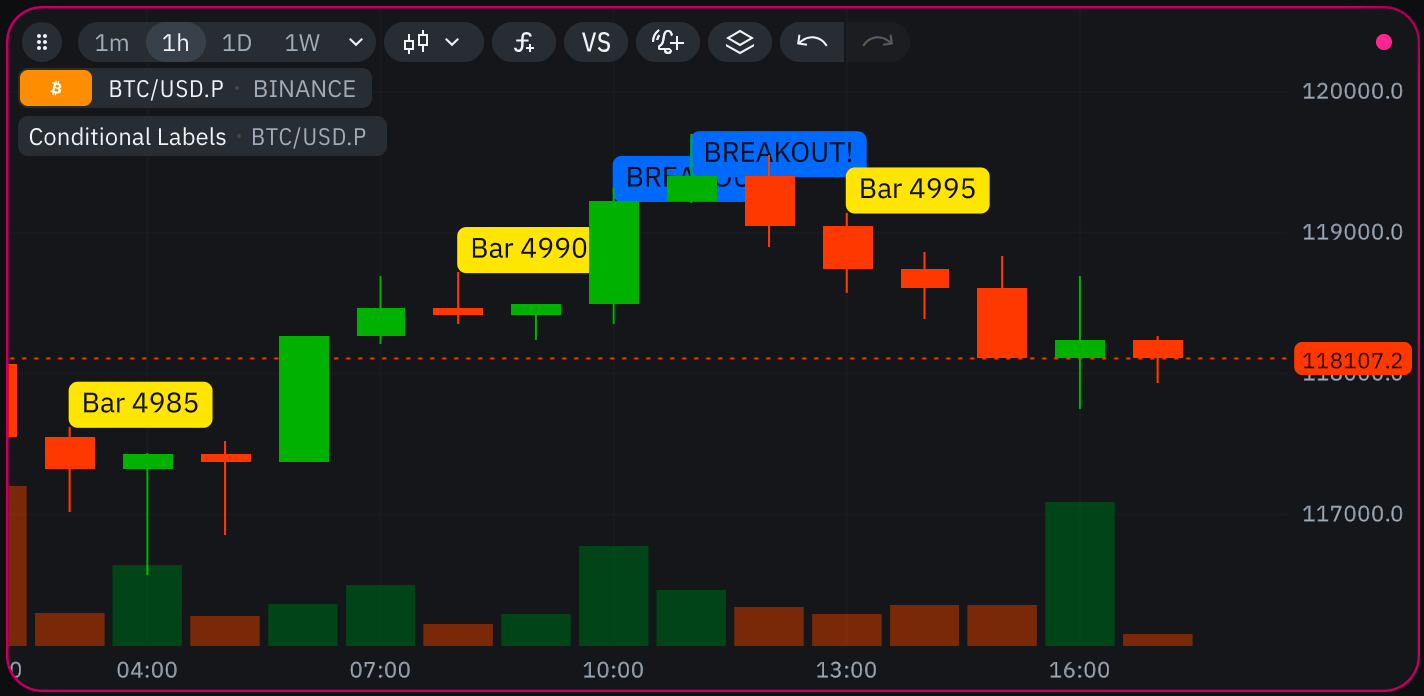
Pattern 1: Draw labels when conditions are met
Problem: You want to display labels on specific bars when certain conditions are satisfied, such as price patterns, indicator signals, or periodic intervals. Solution: Use conditional logic to check your criteria and create new label objects when conditions are met. No special object management is required.Label breakouts and periodic bars
Pattern 2: Display information in fixed screen position
Problem: You want to show live statistics, indicator values, or other information that stays in a fixed position on screen regardless of chart scrolling or zooming. Solution: Create aLabelRel object once and reuse it by updating its text property. Store the label in a class field (for class-based indicators) or use Var (for function-based indicators).
Always reuse the same
LabelRel object. Creating new relative-positioned labels on each bar will cause an error “count of relative positioned drawings exceeded the limit 100”.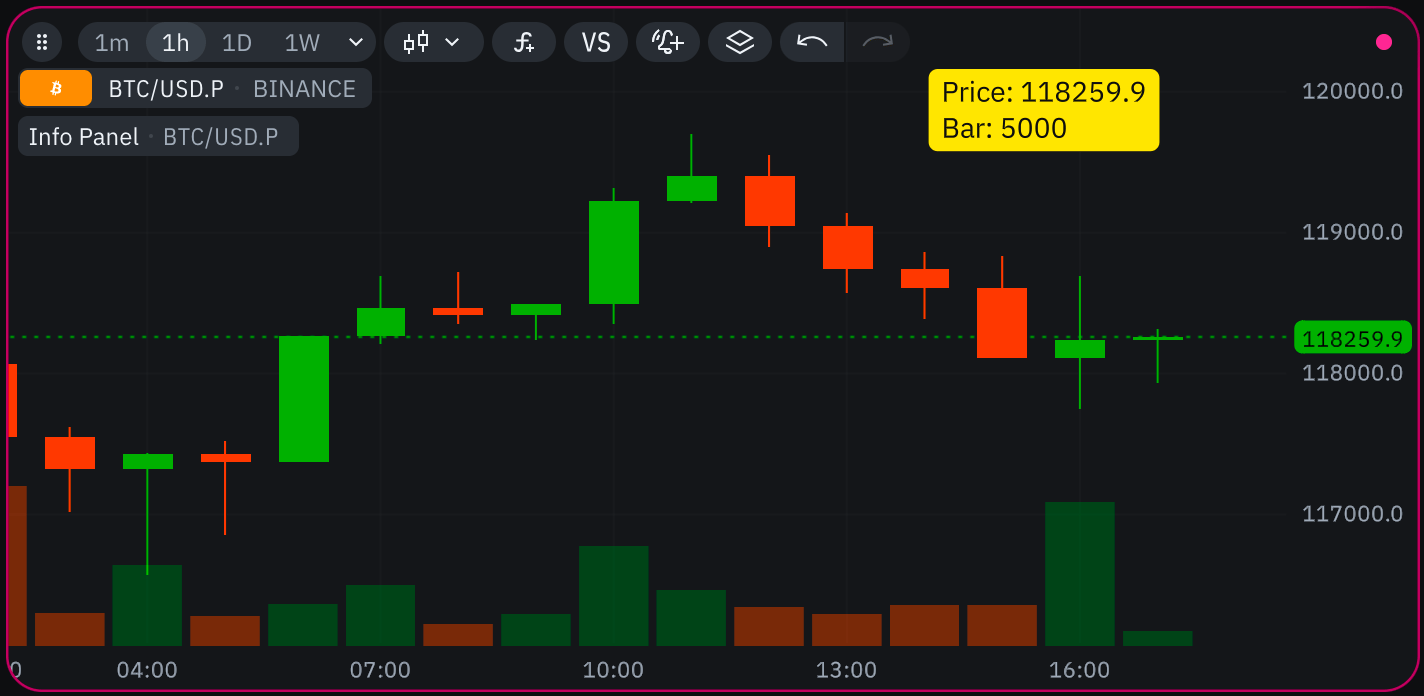
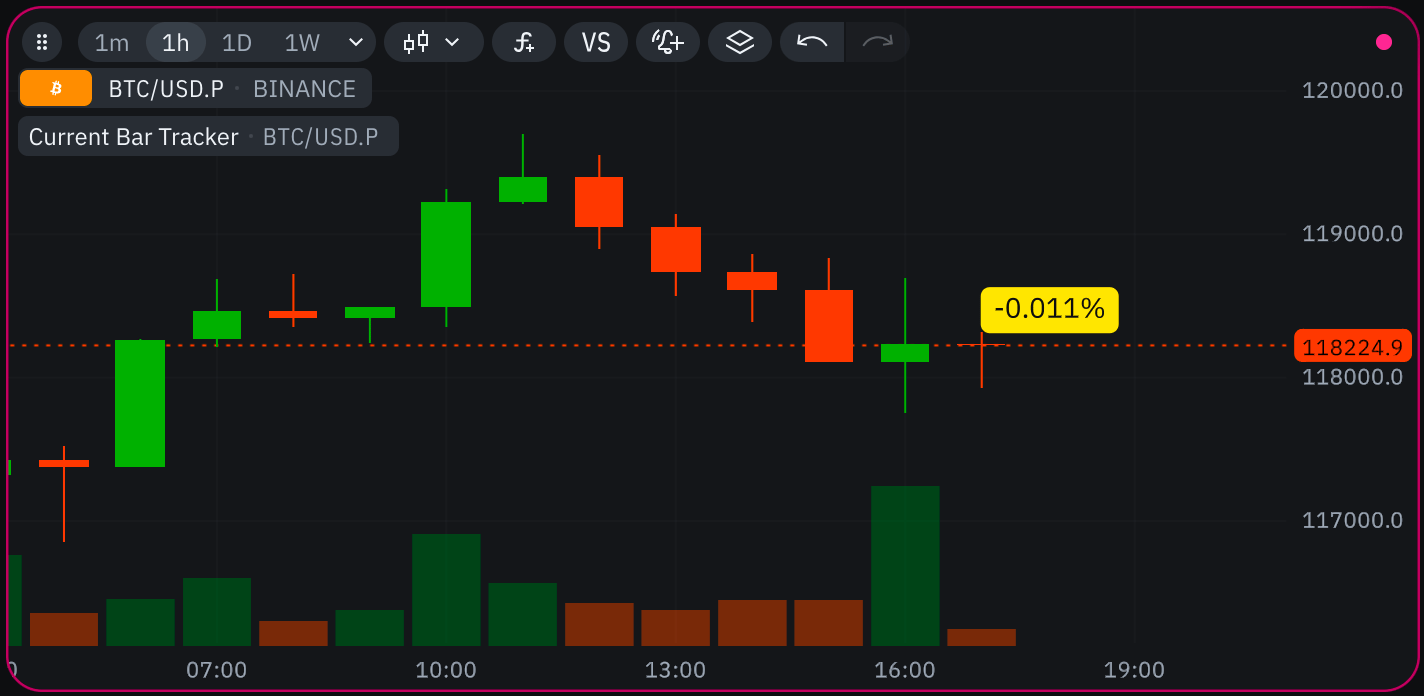
Pattern 3: Label that follows the current bar
Problem: You want a label that appears only above the most recent bar and moves with it as new bars arrive, displaying current values or active signals. Solution: Create aLabelAbs object once and update both its position and text properties on each bar to follow the current price action.
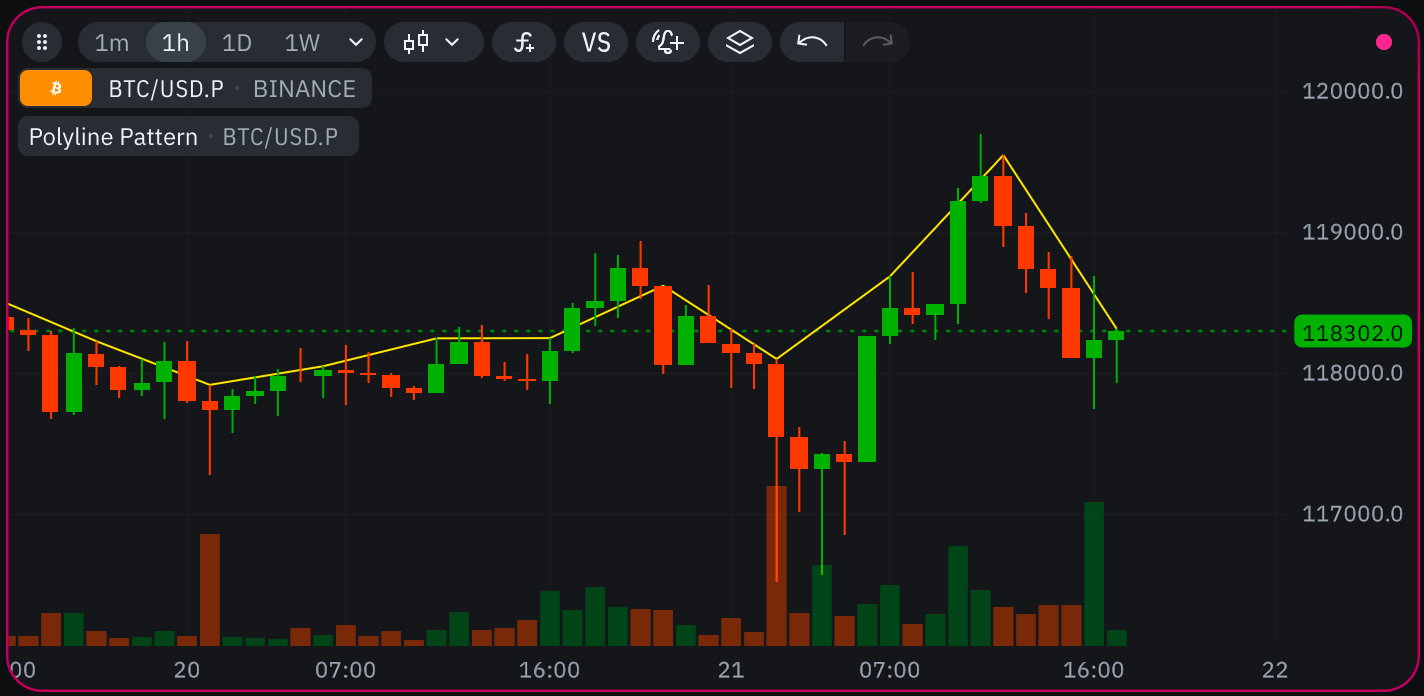
Pattern 4: Draw polyline connecting specific points
Problem: You want to create connected lines that pass through specific price points (e.g., highs every 5 bars), forming a polyline that updates as new bars arrive. Solution: Maintain only the current active segment usingVar. Update the segment’s endpoint between anchor points, and create new segments at anchor points.
Var makes the segment roll back with it. The Optional is a separate thing: it only expresses “there is no segment yet”, before the first anchor bar.
self.current_segment: Optional[LineSegment] instead:
- On anchor bar (e.g., bar 10), you create a new segment starting from the previous segment’s endpoint and save it to
self.current_segment - An intrabar update arrives, chart rolls back to the start of bar 10
- During recalculation, the code tries to create a new LineSegment, but takes its start point from
self.current_segment, which was modified during the previous update and wasn’t rolled back - This creates a disconnected polyline — the new segment starts from an incorrect position
Pattern 5: Erase drawings created on previous executions
Problem: You need to erase drawings that were created during previous bar updates or previous intrabar executions. This is common for temporary overlays, alerts, or any drawing that should appear and disappear based on conditions. Solution: Let’s explore this through a concrete example — a blinking line indicator. The instructive part is the first attempt, because its failure is silent. First attempt — a new object in a class field:- On the last update of bar N, the line is erased (
is_visiblewas False) - Bar N+1 starts with no line on the chart
- First execution:
is_visiblebecomes True, a new line object is created and drawn - Intrabar update arrives, chart rolls back to start of bar N+1 (no line)
- Second execution:
is_visiblebecomes False, so the script erases the object the class field still points at — an object the rollback has already detached from the chart - The erase does nothing: the object the field points at is not the object the chart is showing
Nothing is reported when this happens — the erase is simply skipped. And it only happens
during realtime, so there is nothing to point at the cause.
erase on a line that is not on the chart does nothing,
and draw on a line that is already there updates it.
Note that there is no Var here, and no Optional standing in for “not drawn”. Neither is
needed: nothing is ever read back out of the line, and both of its endpoints are overwritten
from current bar data each time, so there is no state to roll back. Compare Pattern 4, where
each segment is built from the previous one’s endpoint — that is what makes the Var
load-bearing there.
Result: The line blinks with each execution — appearing when is_visible is true and
disappearing when false. During realtime updates, each intrabar update toggles the
visibility, creating a visual heartbeat of market activity. The toggle lives in a plain class
field on purpose: it is meant to flip on every execution, intrabar updates included, which is
exactly what the “heartbeat” is.
Reusing one object also keeps the number of chart objects flat. Over the same data, this
indicator creates exactly one, while a version that builds a fresh
LineSegment on each
toggle creates one per toggle — a count that keeps growing for as long as the indicator runs.Pattern 6: Skip redundant draws during history with is_last_bar
Problem: You have a drawing that gets updated every bar (e.g., an info panel, a “current price” label) but only the final state matters to the user. During history calculation the runtime tracks every chart.draw() call internally, so redrawing the same object on each of thousands of history bars wastes memory and slows down calculation — even though only the last bar’s state will ever be visible.
Solution: Guard the drawing call with self.is_last_bar so that the object is only drawn once — on the most recent bar. During realtime updates is_last_bar is always True, so the drawing updates normally.
Pattern 7: Prefer @level over a constant plot line
Problem: You need a fixed horizontal line at a known value — an overbought threshold, a zero line, a target price. It is tempting to reach for @plot.line and return the constant on every bar, but that is the wrong tool for a static value.
Solution: Use the @level decorator. It is a purely static, compile-time decorator: it takes no return value and occupies no slot in the return tuple. The line is described once, at compile time, from a single constant.
@level is faster and leaner: A value returned from @plot.line is treated as a full time series. The runtime evaluates it, stores it, and streams it to the chart on every one of the thousands of history bars — even though the number never changes. @level carries a single constant: nothing is computed or stored per bar. Same visual result, a fraction of the memory and compute.
Pattern 8: Prefer @band over two lines with a fill
Problem: You want a shaded zone between two fixed values — a neutral RSI zone, a value area, a no-trade corridor. The manual approach is two @plot.line decorators plus a @plot.fill, returning both constants and a plot.Fill() every bar.
Solution: Use the @band decorator. Like @level, it is static and compile-time: two constant edges and a fill described once, with no return value and no output slots to feed.
@band is faster and leaner: The manual version occupies three extra output slots — two constant lines and a fill — each tracked as its own per-bar series across the entire history. @band replaces all three with a single static declaration that carries two constants. Fewer output slots, no per-bar evaluation, less data streamed to the chart.
Rule of thumb: whenever a horizontal line or zone sits at a value that is known at compile time and never changes during the run, use
@level or @band. Reach for a constant @plot.line (and @plot.fill) only when the value is genuinely dynamic — computed at runtime or changing bar-to-bar (e.g., a volatility-adjusted threshold). In that case the value really is a series, and a plot is the right tool.